
PNP IoTs SOFTWARE
Autosave
Automatically save RTU measurements as CSV
Autosave is a Windows application that connects to PnP IoTs RTUs and automatically records sensor measurements in a selected folder. The saved CSV files can be opened in Excel or used by other analysis applications.

Overview
Simple from installation to data review
Store RTU measurements on a PC without building a separate database. You can first verify operation with the evaluation version, then use a licensed version for production RTU connections.
Easy installation
Download and run the application, then enter the RTU IP address and port to prepare the connection.
Automatic CSV logging
Measurements are automatically recorded in the selected folder and can be opened directly in Excel.
Communication status
Check the RTU connection, transmit/receive status and sensor measurements from the application screen.
Getting started
Getting started with Autosave
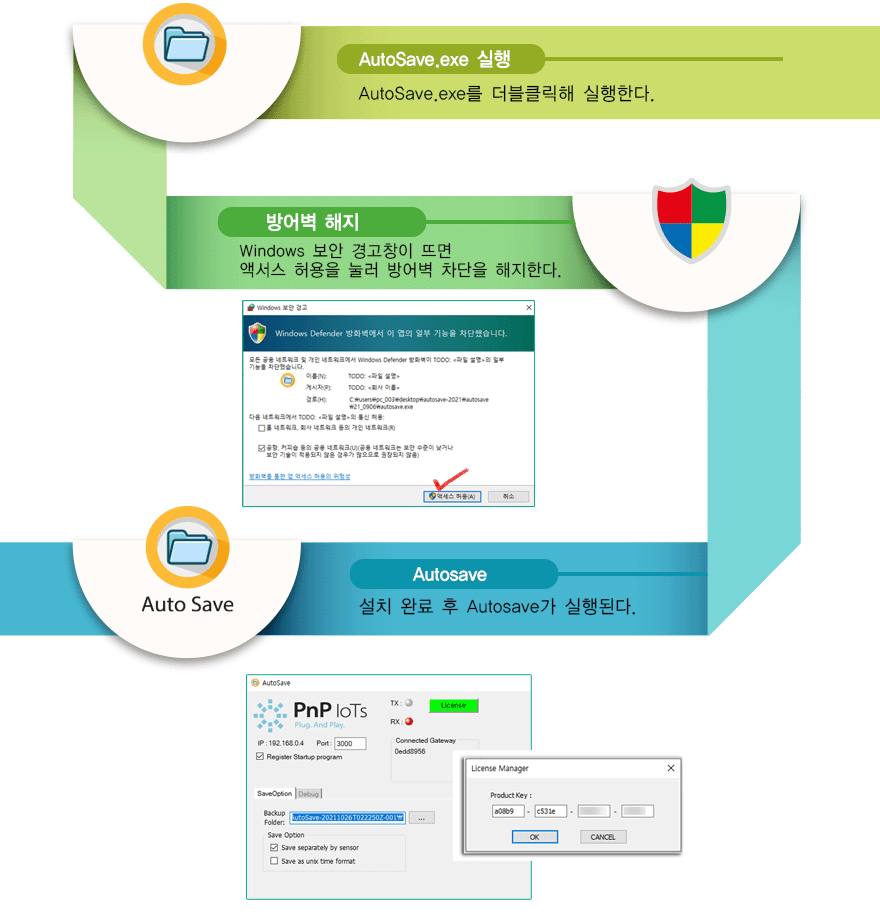
Run the application
Run AutoSave.exe. If a Windows security prompt appears, verify the environment and allow access as appropriate.
Register the license
Enter the product key supplied with your purchase. One license supports up to six RTUs.
Enter RTU connection details
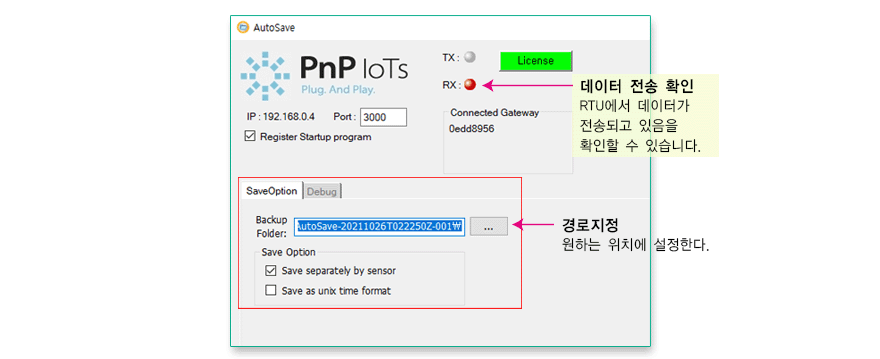
Enter the RTU IP address and communication port, then check the TX/RX indicators and connected gateway information.
Select the save folder
Choose a location under Backup Folder and sensor data will be recorded automatically in CSV format.
Data workflow
From field measurement to CSV file
Save options and communication status in one screen
Choose separate files by sensor, Unix time formatting and the destination folder. TX/RX indicators provide a quick view of RTU communication activity.
CSV access guide
When another application accesses the CSV file
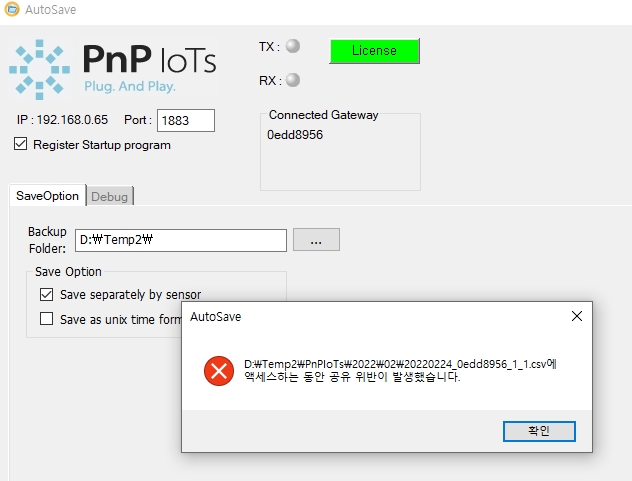
An access conflict may occur when another application attempts to open the same file exclusively while Autosave is writing data.
Reading from another application
Open the file in read mode while also allowing shared access. The following example uses CStdioFile in C++.
CStdioFile file(
  fileName,
  CFile::modeRead |
  CFile::shareDenyNone |
  CFile::typeText
);
Opening the file in Explorer or Excel
Copy the active file to another location and open the copy for review.
Screens and settings may vary by operating system, security configuration, RTU model and application version. Test the connection before production deployment.
CONTACT
Need automatic RTU data logging?
Tell us the number of RTUs, sensor types, logging interval and PC environment, and we will review the right configuration.
Autosave sales & technical inquiry
Leave your contact details and question. Our team will review it and get back to you.